Many days on my lunch break, I will take a walk around campus. Yes, I have a specific route, and yes I go the same way every time, but that's beside the point. I like to be outside and soak in the sunshine, especially when I've been sitting at my desk all day. Since I work on a college campus, there are always many other pedestrians out walking, though most are simply trying to get from point A to point B.
It never ceases to amaze me just how many people look downwards staring at their phones! Sure, I have my phone with me to listen to Survivor podcasts, plus, well, for safety reasons, but I don't understand this compulsive behavior to stare down during your entire walking commute.
Here are 3 Major Reasons not to Text and Walk
1. It is Dangerous. I give training on Safety all the time. It is part of my job responsibilities to inform employees about the hazards that they may encounter will working at the university. I can always get a laugh when I talk about students texting and walking and running into stuff. Why do I use this example? Because texting and walking is dangerous! ESPECIALLY when you are walking adjacent to a busy road with crazy drivers!
2. It is Rude. One of the things that bugs me is how rude looking down at your phone can be. We all know its rude to be staring down at your phone while someone is trying to talk to you, but its also rude when you aren't talking at all. When you walk around in a public place, you will probably interact with people, even if its not on an audible level.
interact. verb. act in such a way as to have an effect on another, act reciprocally.
If you think that hogging sidewalk (and forcing me to dodge out of your way because you've got your eyes glued to your phone) isn't interacting, you're wrong...
3. It is Inattentive. For me, this is huge. My brain is wired to pay attention to detail. It's why I'm good at my job. It's why I like to create things. It's why I remember really really weird things. If you pay attention, there are so many things to take in!
I've mentioned before in a previous post about how random people ask me for directions all the time. As I mention in that post, it could be because I have a friendly face. OR it could be because I'm the only human around who is not looking down at their phone! I look present and approachable.
Several months ago, I watched a webinar about texting and driving. Texting and Driving has turned in to a huge problem in America, and I'm not going to get into all of my ideas about that, but I wanted to mention something that this webinar pointed out. "Distracted Driving" has existed since the Model T. In the past, distracted driving was eating your Chic-fil-a sandwich, or changing your Hanson CD, or putting your baby's pacifier back in her mouth. Normally when you are distracted, you are being distracted via one body part (i.e. your eyes, your brain, or your hands). Texting is a whole new "genre" of distracted.You are literally forced to use your eyes, your brain and your hands to successfully text.Texting takes your eyes off the road, your hands off the wheel, and your thoughts off of your main task. [Side note: I was looking for the percentage of your brain that is used while texting and I stumbled on this awesome website about texting and driving.]
I'm not anti-texting and I'm not anti-technology (obviously), but it's just not a good idea to try and successfully do anything with only part of your brain, even if it's something you learned at the age of one! Texting and walking is a bad idea. It's dangerous. It's rude. It's Inattentive. Just don't do it.
Showing posts with label Technology. Show all posts
Monday, March 6, 2017
Monday, November 16, 2015
Using Spreadsheets to Organize
Organization. It's what gets my blood pumping. It's what gets my heart racing.
Ok, I exaggerate, but not by much.
I love organizing stuff. If something can be organized, it will be organized. (Disclaimer: this does NOT mean I'm not messy...) One of the best ways you can use excel spreadsheets is to organize ideas, thoughts, or items.
In my previous posts about spreadsheets, I've discussed Using Spreadsheets to List and Using Spreadsheets to Schedule. Now we all know, that these tasks can also be completed using a word document, and a virtual planner, respectively. But the absolute BEST way to ORGANIZE is by using Spreadsheets.
Essentially, a spreadsheet is a pre-made table that you can merge and un-merge cells as needed. Additionally, you can change or update it indefinitely, color coordinate, or add bolder lines for categories or sections.
Organizing for Planning Purposes. This is sort of a mix between organizing and scheduling. I use the spreadsheet shown below to help me stay on track at work. Each month I update our website based on specific safety topics. At the beginning of each month, I simply refer to my spreadsheet and determine what needs to be changed, updated, or deleted on the website. It makes this task very simple. Using Spreadsheets to Organize takes more time on the front end, but saves you time in the long run.
Another example of Organizing for Planning Purposes is when you are in need of "filling up slots." (Sorry, I'm not very good at thinking today.... Let me just give you an example, and it will make more sense). When we were planning our wedding, we spent a lot of time picking out the specific songs we wanted played at specific times. To make it even more complicated, we both have pretty strong ideas about what "good music" sounds like. So, we decided that our music picks would be equal. This specific spreadsheet was on Google Drive so that we both had access whenever we needed it and could add songs as they came to us.
You will notice that this spreadsheet is a more common format of "the table" as opposed to "the matrix" style (shown in the spreadsheet above).
Organizing for Knowledge Purposes. One way I use spreadsheets is to gather information from different sources online and keep it all together in one document. These types of spreadsheets are perfect for a quick reference for a topic that you are extrememly interested in.
A good example of Organizing for Knowledge Purposes is this spreadsheet that lists all of the Books of the Bible. Of course, I could look up all of these facts in my Bible concordance, or Google, as I need them. But instead, now its all in one place for me.
This type of spreadsheet is great if you are really into facts, or if you are interested to know how things are categorized. A normal person probably wouldn't make a spreadsheet just to have random information on it that you could look up anyway, but I say, why not cut out the middle man all together and create your own reference. #SpreadsheetsAreFun
Organizing for Trending Purposes. Another great way to use spreadsheets when it comes to organizing stuff is, to organize in order to visualize trends. I personally don't do this frequently, but when I do, its always beneficial and satisfying. Ok....so don't judge me on this example.
This example shows all of the seasons of Survivor with random things that have happened in each season. The show has been on the air for over 15 years, so obviously some things have changed and evolved, both with gameplay and "twists" that production adds. The spreadsheet shows the presence of said gameplay or twists, and it shows ME the trends.
For example, as a Survivor fan, I can see that for the past 18 seasons, there have been 15 "final 3" situations, and only 3 "final 2" situations (The first 12 seasons were ALL "final 2" situations). SO I know that, at this point of the series, it is the most likely that there will be a "final 3" as opposed to a "final 2."
Sorry everyone for the nerd overload.... The last installment of this series will be coming before 2015 ends. It will be Using Spreadsheets to Calculate.
Other Spreadsheet Posts
Tips & Tricks | List | Schedule | Organize | Calculate
Ok, I exaggerate, but not by much.
I love organizing stuff. If something can be organized, it will be organized. (Disclaimer: this does NOT mean I'm not messy...) One of the best ways you can use excel spreadsheets is to organize ideas, thoughts, or items.
In my previous posts about spreadsheets, I've discussed Using Spreadsheets to List and Using Spreadsheets to Schedule. Now we all know, that these tasks can also be completed using a word document, and a virtual planner, respectively. But the absolute BEST way to ORGANIZE is by using Spreadsheets.
Essentially, a spreadsheet is a pre-made table that you can merge and un-merge cells as needed. Additionally, you can change or update it indefinitely, color coordinate, or add bolder lines for categories or sections.
Organizing for Planning Purposes. This is sort of a mix between organizing and scheduling. I use the spreadsheet shown below to help me stay on track at work. Each month I update our website based on specific safety topics. At the beginning of each month, I simply refer to my spreadsheet and determine what needs to be changed, updated, or deleted on the website. It makes this task very simple. Using Spreadsheets to Organize takes more time on the front end, but saves you time in the long run.
Another example of Organizing for Planning Purposes is when you are in need of "filling up slots." (Sorry, I'm not very good at thinking today.... Let me just give you an example, and it will make more sense). When we were planning our wedding, we spent a lot of time picking out the specific songs we wanted played at specific times. To make it even more complicated, we both have pretty strong ideas about what "good music" sounds like. So, we decided that our music picks would be equal. This specific spreadsheet was on Google Drive so that we both had access whenever we needed it and could add songs as they came to us.
You will notice that this spreadsheet is a more common format of "the table" as opposed to "the matrix" style (shown in the spreadsheet above).
Organizing for Knowledge Purposes. One way I use spreadsheets is to gather information from different sources online and keep it all together in one document. These types of spreadsheets are perfect for a quick reference for a topic that you are extrememly interested in. A good example of Organizing for Knowledge Purposes is this spreadsheet that lists all of the Books of the Bible. Of course, I could look up all of these facts in my Bible concordance, or Google, as I need them. But instead, now its all in one place for me.
This type of spreadsheet is great if you are really into facts, or if you are interested to know how things are categorized. A normal person probably wouldn't make a spreadsheet just to have random information on it that you could look up anyway, but I say, why not cut out the middle man all together and create your own reference. #SpreadsheetsAreFun
Organizing for Trending Purposes. Another great way to use spreadsheets when it comes to organizing stuff is, to organize in order to visualize trends. I personally don't do this frequently, but when I do, its always beneficial and satisfying. Ok....so don't judge me on this example.
This example shows all of the seasons of Survivor with random things that have happened in each season. The show has been on the air for over 15 years, so obviously some things have changed and evolved, both with gameplay and "twists" that production adds. The spreadsheet shows the presence of said gameplay or twists, and it shows ME the trends.
For example, as a Survivor fan, I can see that for the past 18 seasons, there have been 15 "final 3" situations, and only 3 "final 2" situations (The first 12 seasons were ALL "final 2" situations). SO I know that, at this point of the series, it is the most likely that there will be a "final 3" as opposed to a "final 2."
Sorry everyone for the nerd overload.... The last installment of this series will be coming before 2015 ends. It will be Using Spreadsheets to Calculate.
Other Spreadsheet Posts
Tips & Tricks | List | Schedule | Organize | Calculate
Thursday, October 22, 2015
Using Spreadsheets to Schedule
One interesting thing about me, is that I like to have a plan. Always. Its not that I'm not spontaneous, its just that having a plan reduces the likelihood of being anxious about stuff. I really like to plan and schedule and I sort of think about it as if it is a puzzle to solve.
Anyway, that leads me to this blog post: Using Spreadsheets to Schedule. Spreadsheets are not typically used as a scheduling assistant, and I'm not advocating that this is the best method to plan an event, especially when it involves many people. But I will say, that I use spreadsheets to schedule quite often.
1. Scheduling for a Month. First off, I'd like to say that using a spreadsheet to plan or schedule your month is the least helpful method. However, it is helpful if you're just trying to keep track of one or two specific things.
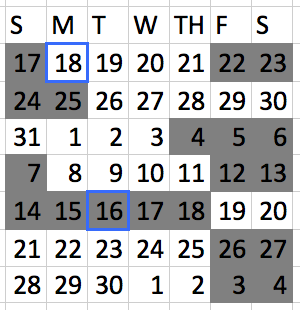
Let me elaborate by giving examples. When we were planning to move, we also had A LOT going on because of vacations and my sister's wedding, yet we still wanted to move at the most opportune time to have less overlap between our two leases. In this instance, I simply created a small table using a spreadsheet, entered the numbers for each date, then shaded the days in which we were unavailable to move. This helped us determine exactly how many days we had to move, as well as determined THE EXACT day in which we HAD to move. The boxes greyed out are unavailable days, and the boxes with a blue outline, were the days in which our notification and end date were for our old lease (meaning we had to be completely out by the 16th). See an elaborated timeline here.... (it was a crazy month!)
I've also used this same type of setup to monitor how many days in a row I work out. The visual is a pretty good motivation to continue going to the gym.
2. Scheduling for a Week. This is pretty handy for me, and quite honestly, I use this method often. I first started doing this when I would schedule for classes in college where every day of the week would have a specific different schedule.
What you can do is create columns (representing each day) that can be broken up into smaller blocks of time. Then you can color code based on class or building or activity.
Above is an example of this from when we were planning our Disney World Vacation. Each color represented a different park. Darker shades represented non-negotiable parks based on the dining reservations we had made, and the lighter colors were time periods were we could decide on the fly where we wanted to go based on our moods. (Orange- Disney Springs; Red- Magic Kingdom; Purple- Epcot, Green- Animal Kingdom; Blue- Hollywood Studios).
3. Scheduling for a Day. Now this is intense, so just get ready. The only time I can remember ever using spreadsheets to schedule one day is for our wedding. This was really helpful in making a plan for individuals or groups of people that needed to do different things throughout the day.
A wedding is one of the very few reasons I can think of why a regular person would need to do this... But maybe if you were an event planner, you might use this often, or if you were planning something with MANY different contributors. Construction companies, for example, use a similar method when they are planning, building, and finishing a building.
Bonus: Scheduling Over Time. This isn't really helpful in scheduling, because SO much can change over a few months or years. HOWEVER, I have some spreadsheets that monitors specific informational dates over several years. This example is included in this post because it pertains to dates, and it fits better in scheduling that it does in any other spreadsheet category in this series.
A few months ago, I was curious about when seasons of Survivor are filmed vs. when they are aired. So, using wikipedia, I researched the dates and created this spreadsheet, simply to visualize the timeline of it all.
#DontJudge.... Tune in next time to read about Using Spreadsheets to Organize.
Other Spreadsheet Posts
Tips & Tricks | List | Schedule | Organize | Calculate
Anyway, that leads me to this blog post: Using Spreadsheets to Schedule. Spreadsheets are not typically used as a scheduling assistant, and I'm not advocating that this is the best method to plan an event, especially when it involves many people. But I will say, that I use spreadsheets to schedule quite often.
1. Scheduling for a Month. First off, I'd like to say that using a spreadsheet to plan or schedule your month is the least helpful method. However, it is helpful if you're just trying to keep track of one or two specific things.
Let me elaborate by giving examples. When we were planning to move, we also had A LOT going on because of vacations and my sister's wedding, yet we still wanted to move at the most opportune time to have less overlap between our two leases. In this instance, I simply created a small table using a spreadsheet, entered the numbers for each date, then shaded the days in which we were unavailable to move. This helped us determine exactly how many days we had to move, as well as determined THE EXACT day in which we HAD to move. The boxes greyed out are unavailable days, and the boxes with a blue outline, were the days in which our notification and end date were for our old lease (meaning we had to be completely out by the 16th). See an elaborated timeline here.... (it was a crazy month!)I've also used this same type of setup to monitor how many days in a row I work out. The visual is a pretty good motivation to continue going to the gym.
2. Scheduling for a Week. This is pretty handy for me, and quite honestly, I use this method often. I first started doing this when I would schedule for classes in college where every day of the week would have a specific different schedule.
What you can do is create columns (representing each day) that can be broken up into smaller blocks of time. Then you can color code based on class or building or activity.
Above is an example of this from when we were planning our Disney World Vacation. Each color represented a different park. Darker shades represented non-negotiable parks based on the dining reservations we had made, and the lighter colors were time periods were we could decide on the fly where we wanted to go based on our moods. (Orange- Disney Springs; Red- Magic Kingdom; Purple- Epcot, Green- Animal Kingdom; Blue- Hollywood Studios).
3. Scheduling for a Day. Now this is intense, so just get ready. The only time I can remember ever using spreadsheets to schedule one day is for our wedding. This was really helpful in making a plan for individuals or groups of people that needed to do different things throughout the day.
A wedding is one of the very few reasons I can think of why a regular person would need to do this... But maybe if you were an event planner, you might use this often, or if you were planning something with MANY different contributors. Construction companies, for example, use a similar method when they are planning, building, and finishing a building.
Bonus: Scheduling Over Time. This isn't really helpful in scheduling, because SO much can change over a few months or years. HOWEVER, I have some spreadsheets that monitors specific informational dates over several years. This example is included in this post because it pertains to dates, and it fits better in scheduling that it does in any other spreadsheet category in this series.
A few months ago, I was curious about when seasons of Survivor are filmed vs. when they are aired. So, using wikipedia, I researched the dates and created this spreadsheet, simply to visualize the timeline of it all.
#DontJudge.... Tune in next time to read about Using Spreadsheets to Organize.
Other Spreadsheet Posts
Tips & Tricks | List | Schedule | Organize | Calculate
Thursday, October 15, 2015
Charge HR Review
So, for the past few months I've been trying to get a little bit more in shape. I use an iPhone app called MyFitnessPal to keep me on track. This app helps you track your calorie intake from eating and your calories burned from working out. Recording food is someone easy, as no matter who you are or what your body type is, you know that if they box says you're eating 140 calories for a breakfast bar, then you are eating 140 calories.
There is no guessing unless you make something homemade, and even then, you just have to know the major ingredients.
Anyway, the exercise is what I always wondered about. Even though I am really good about recording the exercise events (because, duh, that means I can eat more...), I'm always curious to know if what the treadmill says is really true. Because, nobody REALLY holds on to the metal heart rate monitors the whole time they're running. This, coupled with Nathan's new Apple Watch (which records your activity) got me investigating options to record my physical activity automatically.
After some research, I decided on a Fitbit Charge HR.
What I like about the Charge HR:
- Its very simple. On the face, you can view the time & date, daily steps taken, current heart rate, daily distance traveled, daily calories burned, and daily flights of stairs climbed. It has 1 button, so it doesn't really take long to figure out how to use it.
- It stays charged for about 5 days. This is way better than charging every night! One way to save your battery even more is by setting it to not automatically sync to your phone.
- You can easily record specific time intervals. If you are going to go on a run, you can just hold down the 1 button when you start, and hold down the same button when you end.
- The fitbit app is awesome and the online dashboard is even better! These give you so much information! You can literally go in and see what your statistics are for a specific time or workout.
- The fitbit app syncs to the MyFitnessPal app. To me, this was a big selling point. This completely eliminates the guessing game when it comes to inputing my calories burned from working out. It also tracks calories burned during activities that you wouldn't necessarily think to record, such as cleaning, or walking the dog.
What I don't like about the Charge HR:
- Honestly, I like everything about it, except wearing it. Its not uncomfortable at all; I just feel that it is a bit underdressed with some of my work outfits. It looks great with a t-shirt.
- I don't like sleeping in the fitbit. One of the main advertised attributes of the Charge HR is that it will record your sleep. Well, I don't know if I just sleep weird or what, but its sort of hard to adjust sleeping with basically a watch on. Maybe thats just me tho. I'm starting to get used to it, I think.
I would recommend an Charge HR to someone who is interesting in getting a fitbit-like device for recording your steps walked, your miles traveled, and your accurate heart rate.
Monday, September 14, 2015
Using Spreadsheets to List
Making lists is the most basic way to use Excel Spreadsheet (or similar program). Normally making a list using a spreadsheet tool would be considered a waste of time, because it pretty much is. If you're making a one time list, that is going to have items which will be marked off once, then discarded, then yes, using a spreadsheet to make a list is a waste of time. However, there are several occasions where using a spreadsheet to make lists would be beneficial and save time.
Now, just a disclaimer, when I say "save time," I mean save time over time. All spreadsheets take at least a bit of time to set up, but once they are designed and in use, they save you time on the day to day. Here are 3 ways I have used spreadsheets maximize my list-making potential.
1. Grocery List. If you are like me, you usually buy the same foods at the grocery. Having a coupon is an exception. But lets all be honest, we are all creatures of habit. For example, if you don't typically buy cranberries, you are more than likely not going to wake up one day and think, "hmm... I think I'll buy some cranberries," or "hey... I think I need to start putting hairspray in my hair." If you haven't done it before in your life, why would you start now? Anyway, I'm getting off topic.
Lets assume that you are always going to get the same grocery items at the store. Now obviously, some things run out earlier than others, so you're not going to need the same list for every grocery experience.
Here's where a spreadsheet can help you: A master list. I found this trick in an organization book, and sometimes I use this method when I shop. You have the master list on the fridge and then as you run out of things during the week, you just put an X beside them. On grocery day, you don't have to think about what you've run out of, or rummage through your cabinets and fridge.
2. Record Keeping. Saying "record keeping" really opens up a can of worms, because that could mean anything.... But let me just elaborate. Using a spreadsheet to help you keep track of items where you may need several aspects of each list items, can just help you in remembering what you've done or what you need to do. To elaborate more, I'll show our "Moving Address Change List."
Now, I actually found this idea online somewhere, when I was researching places that require address changes when you move, just so you know. Anyway, this spreadsheet is helpful because Nathan and I were able to work together in getting this done. This also helped us keep track of things we still needed to get done.
Sometimes, its important to not only have the primary list, but also have specific information going along with that list. If I had to guess, I'd say this is the most common use of spreadsheet among all users. Spreadsheets, in essence, are a never-ending table, so many times, when people want to make a table, they use excel spreadsheet or another spreadsheet service.
In this case, we wanted to keep track of numbers we called, representatives who we spoke to, and dates we completed the address change. This was a Google Sheets spreadsheet so that Nathan and I could both access and edit the table in real time. Additionally, we could access this on any device with internet. Google Sheets makes collaboration very easy.
Now, we can print off this completed page and save it with our important documents.
3. Address Lists. I realize there are those people who have a physical address book. The people that flip through a tiny leather-bound book and see hand-written addresses, then write letters using textured stationary and antique stamps. I like those people, and I appreciate their style, but I can't even pretend to be one of those them. Yes, I'm the girl that makes a spreadsheet for everything, and I'm not ashamed of it.
Anyway, this is a spreadsheet that I would suggest everyone to have, especially if you don't care that your Christmas Card addresses are printed on labels (we'll get to that later).
We have a spreadsheet with a bunch of addresses. It pretty much has everyone we know, due to our wedding invitations going out a year and a half ago. We have tabs for Family and Friends, Old Friends, and Acquaintances. Different occasions may require different addresses, so we have them separated to find people easily.
Note: Names and addresses are grayed out for privacy. Also, obviously this screenshot is old because Lauren and Blake live together now!
This tool is handy in several ways. Firstly, you can EASILY search for people, simply by using the 'find' command. Secondly, you can sort or filter your spreadsheet based on state, last name, or whatever. Thirdly, and most importantly, you can use an address spreadsheet to create labels in a jiffy. It takes some getting used to as far as what options to click, but once you have it down, it is SO fast. Again, this is a case of saving time in the long run but investing more time in the beginning.
Another reason I prefer to use a spreadsheet to store addresses is because they can easily be changed. ALSO, if you use Google Sheets you can share this with all of your family members.
Additionally, as with all spreadsheets, you could add another column on the edge titled "Christmas Card 2014" or "Moving Announcement" or "Birthday Package" or whatever, that way you can keep track of what you have sent people. Its just a thought.
These are only 3 useful ways to use Spreadsheets to List. The possibilities are literally endless. Tune in next time to read about Using Spreadsheets to Schedule.
Other Spreadsheet Posts
Tips & Tricks | List | Schedule | Organize | Calculate
Now, just a disclaimer, when I say "save time," I mean save time over time. All spreadsheets take at least a bit of time to set up, but once they are designed and in use, they save you time on the day to day. Here are 3 ways I have used spreadsheets maximize my list-making potential.
1. Grocery List. If you are like me, you usually buy the same foods at the grocery. Having a coupon is an exception. But lets all be honest, we are all creatures of habit. For example, if you don't typically buy cranberries, you are more than likely not going to wake up one day and think, "hmm... I think I'll buy some cranberries," or "hey... I think I need to start putting hairspray in my hair." If you haven't done it before in your life, why would you start now? Anyway, I'm getting off topic.
Lets assume that you are always going to get the same grocery items at the store. Now obviously, some things run out earlier than others, so you're not going to need the same list for every grocery experience.
Here's where a spreadsheet can help you: A master list. I found this trick in an organization book, and sometimes I use this method when I shop. You have the master list on the fridge and then as you run out of things during the week, you just put an X beside them. On grocery day, you don't have to think about what you've run out of, or rummage through your cabinets and fridge.
Using a spreadsheet to make your grocery list can save you time in several ways. Firstly, you don't need to take time to actually write out your list; its already written. But lets get real, actually writing the words "eggs" or "rice" or "turkey" doesn't take that much longer than writing 3 X's.
A real time-saver is the aspect I mentioned above: you save time by placing X's as you run out, NOT the day before you go to the store.
Now, here's the game-changer.... In my grocery spreadsheet I have items divided by section in the grocery. This helps me because, I usually go through the store a very particular way, and its always, 100% of the time, the same. So, lets say you get to the store and you look at your regular hand-written non-excel list. You know that it would be a huge time-waster to not grab all of your produce at the same time while you are on that side of the store, so you do just that. You put bananas, tomatoes, strawberries, and carrots in your cart. You move along down your list, and likewise through the store. About halfway through your trip, you realize you forgot apples, so you go back to produce, get the apples, and then pick up where you left off.
If you're like me, when I go into the grocery with an unorganized list, its almost as bad as not having a list at all.... It wastes so much time and makes me thoroughly frustrated. So, if you use a spreadsheet, you can organize via section of the store you shop. Spreadsheets are also very easy to edit, so if one day you DO decide you need cranberries or hairspray, hey go for it!
Every week or month, just print a new page. I also have separate lists for different stores.
2. Record Keeping. Saying "record keeping" really opens up a can of worms, because that could mean anything.... But let me just elaborate. Using a spreadsheet to help you keep track of items where you may need several aspects of each list items, can just help you in remembering what you've done or what you need to do. To elaborate more, I'll show our "Moving Address Change List."Now, I actually found this idea online somewhere, when I was researching places that require address changes when you move, just so you know. Anyway, this spreadsheet is helpful because Nathan and I were able to work together in getting this done. This also helped us keep track of things we still needed to get done.
Sometimes, its important to not only have the primary list, but also have specific information going along with that list. If I had to guess, I'd say this is the most common use of spreadsheet among all users. Spreadsheets, in essence, are a never-ending table, so many times, when people want to make a table, they use excel spreadsheet or another spreadsheet service.
In this case, we wanted to keep track of numbers we called, representatives who we spoke to, and dates we completed the address change. This was a Google Sheets spreadsheet so that Nathan and I could both access and edit the table in real time. Additionally, we could access this on any device with internet. Google Sheets makes collaboration very easy.
Now, we can print off this completed page and save it with our important documents.
3. Address Lists. I realize there are those people who have a physical address book. The people that flip through a tiny leather-bound book and see hand-written addresses, then write letters using textured stationary and antique stamps. I like those people, and I appreciate their style, but I can't even pretend to be one of those them. Yes, I'm the girl that makes a spreadsheet for everything, and I'm not ashamed of it.
Anyway, this is a spreadsheet that I would suggest everyone to have, especially if you don't care that your Christmas Card addresses are printed on labels (we'll get to that later).
We have a spreadsheet with a bunch of addresses. It pretty much has everyone we know, due to our wedding invitations going out a year and a half ago. We have tabs for Family and Friends, Old Friends, and Acquaintances. Different occasions may require different addresses, so we have them separated to find people easily.
Note: Names and addresses are grayed out for privacy. Also, obviously this screenshot is old because Lauren and Blake live together now!
This tool is handy in several ways. Firstly, you can EASILY search for people, simply by using the 'find' command. Secondly, you can sort or filter your spreadsheet based on state, last name, or whatever. Thirdly, and most importantly, you can use an address spreadsheet to create labels in a jiffy. It takes some getting used to as far as what options to click, but once you have it down, it is SO fast. Again, this is a case of saving time in the long run but investing more time in the beginning.
Another reason I prefer to use a spreadsheet to store addresses is because they can easily be changed. ALSO, if you use Google Sheets you can share this with all of your family members.
Additionally, as with all spreadsheets, you could add another column on the edge titled "Christmas Card 2014" or "Moving Announcement" or "Birthday Package" or whatever, that way you can keep track of what you have sent people. Its just a thought.
These are only 3 useful ways to use Spreadsheets to List. The possibilities are literally endless. Tune in next time to read about Using Spreadsheets to Schedule.
Other Spreadsheet Posts
Tips & Tricks | List | Schedule | Organize | Calculate
Thursday, August 27, 2015
Spreadsheet Tips and Tricks
Ok, I'll just get this out of the way... I LOVE excel spreadsheets. If there is a reason I can find to make one, I'll make one. Its a skill. Its an obsession. Its a problem. Which leads me to the first post in a 5 post series: Spreadsheets 101.
Anyway, due to my frequent usage (and helping others navigate using them), I have some tips and tricks to share for when you're making a spreadsheet.
Spreadsheet Tips and Tricks
Now, just to be clear, these are tips and tricks to make your spreadsheet look better. I'll be covering specific ways to use spreadsheets in later posts. In this post, I'll only discuss things that are useful in every kind of spreadsheet.
1. Column or Row Size Change. We all know you can change column or row sizes by clicking between headings and dragging the line. But did you know you can auto-adjust a row or column by double-clicking between headings? For this to work, your spreadsheet needs to have data already input. Watch Short Video
Also, you can auto-adjust multiple columns or rows at once. Simply highlight desired columns or rows and double click between 1 selected heading. Watch Short Video
2. Merge. This is one of my favorite tools to make your spreadsheet look better. Sometimes simply merging cells will clean up the way your spreadsheet looks. This is especially helpful if you are giving a professional presentation. Watch Short Video
Now, something to note, after you merge cells, they will automatically adjust to be bottom centered aligned. Sometimes this type of alignment doesn't look that great, so just use your best judgement to play around with the alignment. Watch Short Video
3. Borders. Making borders in your spreadsheet can be tricky, especially if you want to have some sort of odd border. If you want to print all borders, its pretty its pretty simple. In Microsoft Excel, go to Layout > Print > Select Gridlines. Done.
However, if you want your borders to be something special, there are a few tricks you can do. Clicking on the border icon will give you several options. Then at the bottom of the border menu, you can see "Border Options." This dialogue box will give you pretty much endless possibilities when it comes to borders. Watch Short Video
Just remember, if something does look how you want it, you can always select edit > undo. Stay tuned for the next post in this series, "Using Spreadsheets for Lists."
Other Spreadsheet Posts
Tips & Tricks | List | Schedule | Organize | Calculate
Anyway, due to my frequent usage (and helping others navigate using them), I have some tips and tricks to share for when you're making a spreadsheet.
Spreadsheet Tips and Tricks
Now, just to be clear, these are tips and tricks to make your spreadsheet look better. I'll be covering specific ways to use spreadsheets in later posts. In this post, I'll only discuss things that are useful in every kind of spreadsheet.
1. Column or Row Size Change. We all know you can change column or row sizes by clicking between headings and dragging the line. But did you know you can auto-adjust a row or column by double-clicking between headings? For this to work, your spreadsheet needs to have data already input. Watch Short Video
Also, you can auto-adjust multiple columns or rows at once. Simply highlight desired columns or rows and double click between 1 selected heading. Watch Short Video
2. Merge. This is one of my favorite tools to make your spreadsheet look better. Sometimes simply merging cells will clean up the way your spreadsheet looks. This is especially helpful if you are giving a professional presentation. Watch Short Video
3. Borders. Making borders in your spreadsheet can be tricky, especially if you want to have some sort of odd border. If you want to print all borders, its pretty its pretty simple. In Microsoft Excel, go to Layout > Print > Select Gridlines. Done.
Other Spreadsheet Posts
Tips & Tricks | List | Schedule | Organize | Calculate
Thursday, August 13, 2015
Things You Do on your Computer that you wish would work in Real Life

Ok, lets be real. We've all wished for certain situations to be easier. There are those encounters where you wish you could escape the situation. There are frustrating times when you just wish you could change what just happened. And you think, "If only I was on my computer, I could fix this..." I know I've wished certain computer commands were applicable in real life. Here are 5...
1. Edit, Undo. Sometimes, I do stupid things, or say embarrassing comments, or mess a project up right at the very end. Its these times when I wish good old "Edit, Undo" would work in everyday life. I'm sure we've all had those moments; the moments where you immediately know you made a mistake and you wish you could just rewind and not say what you just said. You don't know what you would have said instead, you just wouldn't have said that...
2. Find. I rarely lose things. I mean, its rare. I almost always know where everything is because I'm the type of person who has a place for EVERYTHING. And almost everything has a secondary place where I might put it if the first place is occupied. So, without going into more detail about my borderline OCD, lets just agree that I rarely lose things.... But let me tell you, when I do lose something....it...is...torture. It's like I know where it should be; I know where it could be; I will swear I didn't lose it; and I won't stop looking until I find it.... (I'm still looking for a rain jacket I lost last July)... Anyway, it's in these moments when I just wish I could use the Find command. You would simply type in what you're looking for, and then the item would magically start shining.
3. Right-Click. The right-click. A good list of the most common choices for any given situation on your computer. The right-click, whether clicked intentionally or unintentionally, will always give you the options the user is most-likely wanting to complete. It doesn't give you EVERY option, only the most useful options for the specific program or screen you are encountering. Just imagine if the right-click worked in everyday life. Not sure what to do this weekend? Right-click. Confused about whether or not to take that new job? Right-click. Bored on a snow day? Right-click. You might not always make the right choice, but at least the right-click gave you a narrowed down list.
4. Ctrl-Alt-Del. Once upon a time, you were on your computer, surfing the internet. You stubble upon a cool blog called Cold Tuesday Morning. THEN, all of a sudden, your screen freezes and your computer is not allowing you to do anything! What do you do?! You've just got to finish reading the blog! You try everything; closing the window, clicking back to the previous page, refreshing the page. Nothing will work. So, as a last resort, you angerly press Control, Alt, Delete to bring up the Task Manager. "Thanks Task Manager for stating the obvious that the program is not responding..." You force the close and restart. Now, although Ctrl-Alt-Del is a last resort and annoying, can we all agree that it almost always works? You can get out of any unwanted situation with a simple key stroke. Think of how useful this would be if you were getting a ticket....
**Note: This is specific to PC users. The mac users out there would use "command, option, escape" for the same results.
5. Empty Trash. Ok, would wouldn't want to empty the trash with just a few clicks?!.... I'm not going to elaborate on this one.
Monday, August 10, 2015
Apple Watch Review
Go ahead and laugh...I am an Apple fanboy. I admit this, and in doing so, we can move on. The Apple Watch was announced last year, and I was not sold on the product yet. Its release in April still did not sell me over to the wearable devices side, but once I played with one in the Apple Store, it did soften me a bit. The killing blow was seeing the new features that are to come out in October along with the release of iOS 9. This all being said, here is my opinion on the Apple Watch.
After I had decided to buy an Apple Watch, the hardest decision I had to make was what size of screen and what color/kind of band to get. The official Apple bands are extremely expensive, with the Sport model silicone bands starting at $49. My choice was really between the black and the white band. Once I tried them both on, it both sizes, I decided that the black 42mm Sport model was the correct choice for me. As with all Apple products, the Watch is an extremely attractive device. The way that the band goes under itself (so that you don't have any extra silicone flopping around) was well thought out. The apps on the screen are a bit small, but once you tap them with your finger, the watch will zoom in so that the apps get bigger, which is neat and efficient.
Some of my favorite features of the watch are as follows (in no particular order):
1. iMessage. iMessage is Apple's native iOS to iOS messaging app, which works rather well with the Apple Watch. The Apple Watch DOES NOT feature a keyboard, but you can program your own common responses to messages for a quick reply. Often when I'm walking around town or at work, I won't feel my phone vibrate, but the watch's vibration upon a new message lets me know that I have some waiting, and I can read the full message right from the watch. Siri's ability to transcribe a longer reply is consistent with the iPhone--sometimes she knows exactly what you said, and sometimes she makes a shot in the dark.
2. Phone Calls. Do you look stupid talking into your watch? You bet you do! But, in the comfort of your own home or in your car, it is acceptable, and from those that I've called from the watch, the reception on their end is incredible. My only complaint about the phone calls is that even at maximum volume, the caller can be hard to hear.
3. Apple Pay. I have an iPhone 5s, so NFC is not included on my phone, rendering me unable to use Apple Pay. However, my watch fixes that! I was able to add my credit card to the watch, and make my first Apple Pay yesterday at a Walgreens. WARNING: you may look like a pompous jerk if you do this.
With all of the great features, there are, of course, some things that I do not like about the Apple Watch. Here are some of them (in no particular order):
1. Battery Life. The Battery life on the Watch is mediocre at best. You will have to charge it once a day, unless you only use power saving mode (which is dumb...it's a smart watch...use the "smart parts.") Also, it mirrors your notifications from your phone, so it will also significantly decrease your iPhone's battery life if you fully utilize all of its features. But, if you have an iPhone 6 Plus, no problem!
2. Has to have an iPhone Link. For me, this has not been much of a problem, because I'm rarely without my phone within a few feet. But, to fully utilize the watch, you have to have your iPhone nearby. You cannot walk around town and make phone calls from your watch with the phone laying at home. It makes sense only because Apple did not want to put a cellular antenna into a watch and then force you to have yet another data/minutes plan from a cellular provider. The watch will do some things without the phone, such as track your activity, but most of the cool features require a totes BFF relationship with an iPhone.
Overall, I love my Apple Watch. It's a fun little device that is as Apple said...very personal. Is it a necessary purchase? Absolutely not! Is it vanity? Yes, it is. But I would recommend the purchase of one. If you do, be sure to go to an Apple Store and try them on. And make sure that you get the Apple Care warranty.
And no, I did not write this from my watch.
After I had decided to buy an Apple Watch, the hardest decision I had to make was what size of screen and what color/kind of band to get. The official Apple bands are extremely expensive, with the Sport model silicone bands starting at $49. My choice was really between the black and the white band. Once I tried them both on, it both sizes, I decided that the black 42mm Sport model was the correct choice for me. As with all Apple products, the Watch is an extremely attractive device. The way that the band goes under itself (so that you don't have any extra silicone flopping around) was well thought out. The apps on the screen are a bit small, but once you tap them with your finger, the watch will zoom in so that the apps get bigger, which is neat and efficient.
Some of my favorite features of the watch are as follows (in no particular order):
1. iMessage. iMessage is Apple's native iOS to iOS messaging app, which works rather well with the Apple Watch. The Apple Watch DOES NOT feature a keyboard, but you can program your own common responses to messages for a quick reply. Often when I'm walking around town or at work, I won't feel my phone vibrate, but the watch's vibration upon a new message lets me know that I have some waiting, and I can read the full message right from the watch. Siri's ability to transcribe a longer reply is consistent with the iPhone--sometimes she knows exactly what you said, and sometimes she makes a shot in the dark.
2. Phone Calls. Do you look stupid talking into your watch? You bet you do! But, in the comfort of your own home or in your car, it is acceptable, and from those that I've called from the watch, the reception on their end is incredible. My only complaint about the phone calls is that even at maximum volume, the caller can be hard to hear.
3. Apple Pay. I have an iPhone 5s, so NFC is not included on my phone, rendering me unable to use Apple Pay. However, my watch fixes that! I was able to add my credit card to the watch, and make my first Apple Pay yesterday at a Walgreens. WARNING: you may look like a pompous jerk if you do this.
With all of the great features, there are, of course, some things that I do not like about the Apple Watch. Here are some of them (in no particular order):
1. Battery Life. The Battery life on the Watch is mediocre at best. You will have to charge it once a day, unless you only use power saving mode (which is dumb...it's a smart watch...use the "smart parts.") Also, it mirrors your notifications from your phone, so it will also significantly decrease your iPhone's battery life if you fully utilize all of its features. But, if you have an iPhone 6 Plus, no problem!
2. Has to have an iPhone Link. For me, this has not been much of a problem, because I'm rarely without my phone within a few feet. But, to fully utilize the watch, you have to have your iPhone nearby. You cannot walk around town and make phone calls from your watch with the phone laying at home. It makes sense only because Apple did not want to put a cellular antenna into a watch and then force you to have yet another data/minutes plan from a cellular provider. The watch will do some things without the phone, such as track your activity, but most of the cool features require a totes BFF relationship with an iPhone.
Overall, I love my Apple Watch. It's a fun little device that is as Apple said...very personal. Is it a necessary purchase? Absolutely not! Is it vanity? Yes, it is. But I would recommend the purchase of one. If you do, be sure to go to an Apple Store and try them on. And make sure that you get the Apple Care warranty.
And no, I did not write this from my watch.
Thursday, April 2, 2015
Memories of Former Cellphones
Well, I recently got a new phone. Not really because I wanted one, but because I switched providers. I came off of my dad's Verizon plan and got onto Nathan's AT&T plan (click here to read more about AT&T). So that got me thinking about all of the cell phones I've ever had. People my age are unique in that we do remember people not having cell phones, yet our brains and actions have still adjusted to fully be able to use cell phones as we know them today.
When I was growing up, I really really wanted my own phone line. Thinking back, it seems so weird to request your own land line when many households do not even have a single land line.... Anyway, thats what I wanted. One of my main arguments is that we could talk on the phone AND use the internet AT THE SAME TIME (shoutout to dial-up!!!). It was the perfect solution, really. After a few years, I finally gave up asking.
THEN one day, out of the blue, my dad said, "hey do you hear that?' and I said, "hear what?..." and he said, "that music. I think its coming from your room..." So, I went into my room, and sure enough there was a little ditty coming from my shoe. The glorious moment had come when I had my own phone line; my own cell phone line! I was 16 and I now had my very own Nokia 3310. A few people from school had cell phones, but nothing that was really significant. And guess what?! Not only could I call my friends on my own line, but I could also play a game called "snake." It was awesome!
Before I knew it, the brick phone was obsolete. Now, flip phones were the thing to have. The brick phones, were just too big, after all. When our contract ended, I got a new silver flip phone: the Motorola e815. This phone was legit. You could even take pictures and set them to be your phone background. Also, for your convenience, the antenna was extendable to getbetter service. I mean, do they think of everything or what?
One sad day, I dropped my Motorola e815, and where else did it land but into the toilet (luckily, I had already flushed). It was then that I got the Motorola Razr. I had had my eye on the Razr for a while because several of my friends had it. I liked it because it was significantly thinner than my original flip phone. I loved the sleek design, but by this time "smart" phones were starting to appear. I always said, "who cares about smart phones..." I can honestly say that I didn't want one. I had calling and texting and a camera. That's all you could ever want in a phone!
When it was time to renew our family contract, my sister really wanted a smart phone, but I still didn't care that much. It was still an option to get a phone without the internet and my dad wasn't ready for our bill to take that step. Really, though, the Blackberry was one of the only choices in the smart phone arena that we could purchase through our provider. Lets be real, who really WANTS to use Blackberry? I mean the full keyboard instead of using the numbers?... thats crazy! We compromised and got the LG Dare. The Dare had a touchscreen!!! AND if we REALLY needed to we could use the internet (at an overpriced rate). I'll have to admit, it was a little hard getting used to using the touch screen to type.
Two years later, at contract renewal, we quickly figured out that it was nearly impossible to get a decent phone that didn't have the internet. Additionally, I was without a laptop, due to a burglary, so I really need some sort of internet. And so.... I got the HTC Incredible. I must say, I enjoyed the incredible a lot. I could virtually do anything with my phone! I could make it map out my walks around campus; I could take selfies with the front facing camera; I could play angry birds; I could get on Facebook; and I could use the internet whenever I wanted to! Oh yeah, I could also make calls and send texts. It wasn't until about a year and a half later that I started disliking the Incredible. One day, it gave me an error saying I had no more space on my phone, so I promptly deleted some apps, pictures, texts, etc. From then on no matter what I did, I never had any space. It was so annoying... Thats when I decided I wanted the iPhone. I hoped Apple could be trusted.
I'll have to say, I was late to the apple game. After I had decided to go to grad school, I realized my smart phone wasn't going to cut it anymore; I needed a laptop to do homework. So, I bought an MacBook Pro. Ever since that moment, I knew how convenient it would have an iPhone to accompany my laptop. SO, I got an iPhone 5. Honestly, I have no complaints. I like the size and shape; I like the organized structure; I like the apps; I like everything about it.I like to think about how the cell phones have changed since 2004 when I got my first one. Thanks for the memories, cell phones. Did you have any of these cell phones or cell phones like these? If you did, what did you like or dislike about them? Leave a comment below :)
Friday, March 27, 2015
Brown Paper Packages #6
I skipped posting a BPP post last week due to the fact that I was out of town for a work conference. So, lucky for all of you faithful readers out there, you get a double dose of our favorite things!
Pi Day Celebration - 2 Saturdays ago was Pi Day. Not just any Pi Day, but the ultimate Pi Day. Click here to read my thoughts about this. To celebrate, we invited my parents over to enjoy what? You guessed it. Pie. We ate chicken pot pie and my Mom's pecan pie, and we played Trivial Pursuit (because, ya know, the pie pieces). It was a great day!
Free Cone at Dairy Queen - Dairy Queen gave away free cones one day for their 75th birthday. DQ has a special place in my heart, since I used to work there. But, lets be honest, we didn't go to support Dairy Queen, or celebrate their birthday. We went for the free food.
And then this happened, when we realized the smiley poop emoji on my shirt looked like a chocolate cone....
Catching up with Friends - As I mentioned, I was out of town for a work conference last week. The conference was great, but definitely one of the highlights was getting to see my good friend, Maegan. It was really nice to get to have dinner with her and just talk about our lives! This past Monday, Nathan got to do the same thing with one of his good friends, Cody. Its not often that we get to see our old friends, but when it does happen, we are so grateful. We're both so blessed to have good friends to enjoy and trust! (no pictures available)
A New Craft - Whenever I was wedding planning, I decided that I wanted to incorporate things into our wedding that could be useful after the wedding day. Our guest book was a Bible, which is more special to us than a simple book with names written in it. Our unity ceremony used a canvas, which is hanging in our house as a constant reminder of the day two became one. We both bought practical shoes for our wedding day so that we could wear them from day to day. Which leads me to the new craft. I decided to turn my wedding bouquet into a wreath. I figured, why let something so beautiful collect dust in a closet when I could manipulate it into something equally as beautiful as well as serve as a reminder of our special day. Anyway, here is the result:
I bought a simple stick wreath and several sprigs of greenery. I used all of the flowers from my bouquet. The 3 larger white flowers were also from our wedding, but not from my bouquet. What do you think? Do you think I should have keep my bouquet the way it was? Leave a comment below (on the blog OR on facebook, whichever you prefer).
March Madness - I'm not into sports. Simple as that. I'm not even that competitive, other than when it comes to being right about something. But I have really gotten into March Madness this year. For the first time in my life, I CHOSE to watch Selection Sunday. Although, I was very doubtful, I wanted to see if Murray State would make it into the tournament (they didn't...). Anyway, this spurred a series of events which led to Nathan inviting a bunch of people into a bracket pool using CBS Sports. Since then, it has been almost 2 weeks, and I have to admit, I'm kind of REALLY enjoying March Madness. You know what they say.... "Dems Deberry"
One bad thing happened since the last BPP. Its very trivial, but I'm still mourning the loss of my old phone number. As many of you may have noticed (via the mass text I was forced to send), I got a new phone and with that a new phone number. AT&T forced me to do this, since I was coming from a different phone provider. I don't want to get into all of the gorey details, but I'm really sad to be swittching numbers.... RIP old phone number. Needless to say, we are not very happy with AT&T. Click here to read important info about AT&T and scams they try to pull.
Pi Day Celebration - 2 Saturdays ago was Pi Day. Not just any Pi Day, but the ultimate Pi Day. Click here to read my thoughts about this. To celebrate, we invited my parents over to enjoy what? You guessed it. Pie. We ate chicken pot pie and my Mom's pecan pie, and we played Trivial Pursuit (because, ya know, the pie pieces). It was a great day!
Free Cone at Dairy Queen - Dairy Queen gave away free cones one day for their 75th birthday. DQ has a special place in my heart, since I used to work there. But, lets be honest, we didn't go to support Dairy Queen, or celebrate their birthday. We went for the free food.
And then this happened, when we realized the smiley poop emoji on my shirt looked like a chocolate cone....
Catching up with Friends - As I mentioned, I was out of town for a work conference last week. The conference was great, but definitely one of the highlights was getting to see my good friend, Maegan. It was really nice to get to have dinner with her and just talk about our lives! This past Monday, Nathan got to do the same thing with one of his good friends, Cody. Its not often that we get to see our old friends, but when it does happen, we are so grateful. We're both so blessed to have good friends to enjoy and trust! (no pictures available)
A New Craft - Whenever I was wedding planning, I decided that I wanted to incorporate things into our wedding that could be useful after the wedding day. Our guest book was a Bible, which is more special to us than a simple book with names written in it. Our unity ceremony used a canvas, which is hanging in our house as a constant reminder of the day two became one. We both bought practical shoes for our wedding day so that we could wear them from day to day. Which leads me to the new craft. I decided to turn my wedding bouquet into a wreath. I figured, why let something so beautiful collect dust in a closet when I could manipulate it into something equally as beautiful as well as serve as a reminder of our special day. Anyway, here is the result:
I bought a simple stick wreath and several sprigs of greenery. I used all of the flowers from my bouquet. The 3 larger white flowers were also from our wedding, but not from my bouquet. What do you think? Do you think I should have keep my bouquet the way it was? Leave a comment below (on the blog OR on facebook, whichever you prefer).
March Madness - I'm not into sports. Simple as that. I'm not even that competitive, other than when it comes to being right about something. But I have really gotten into March Madness this year. For the first time in my life, I CHOSE to watch Selection Sunday. Although, I was very doubtful, I wanted to see if Murray State would make it into the tournament (they didn't...). Anyway, this spurred a series of events which led to Nathan inviting a bunch of people into a bracket pool using CBS Sports. Since then, it has been almost 2 weeks, and I have to admit, I'm kind of REALLY enjoying March Madness. You know what they say.... "Dems Deberry"
One bad thing happened since the last BPP. Its very trivial, but I'm still mourning the loss of my old phone number. As many of you may have noticed (via the mass text I was forced to send), I got a new phone and with that a new phone number. AT&T forced me to do this, since I was coming from a different phone provider. I don't want to get into all of the gorey details, but I'm really sad to be swittching numbers.... RIP old phone number. Needless to say, we are not very happy with AT&T. Click here to read important info about AT&T and scams they try to pull.
Subscribe to:
Posts (Atom)